

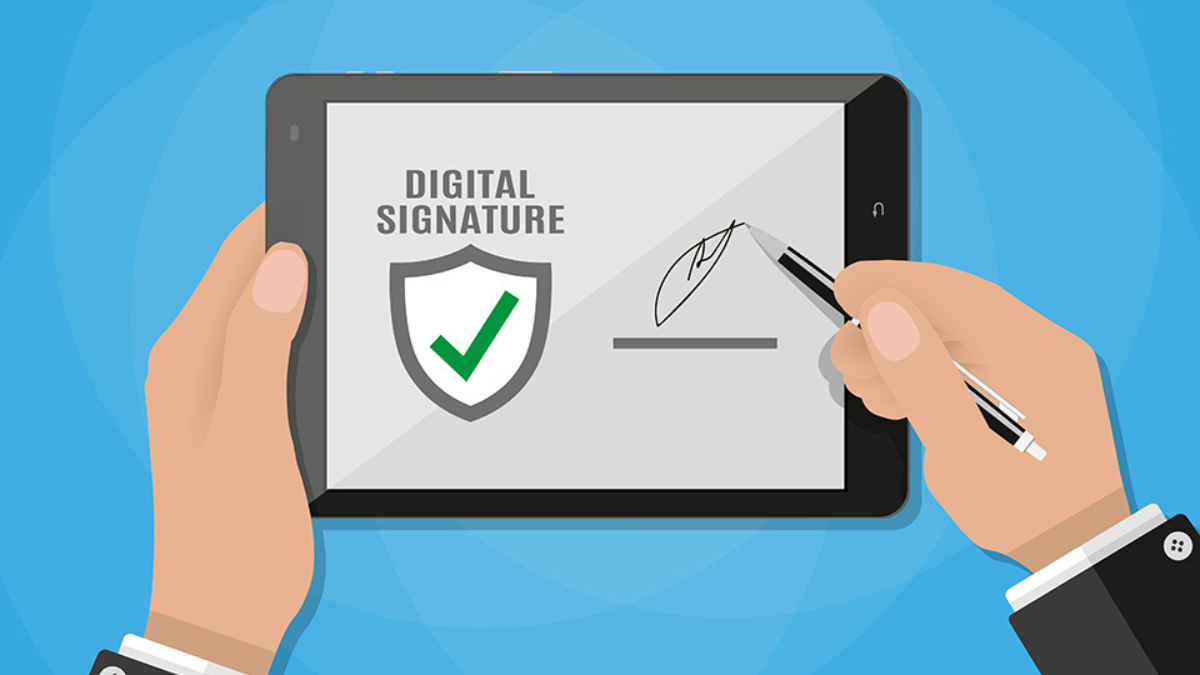
In a world where digital transactions and document signing have become the norm, having a digital signature is very important. Not only does it make paperwork easier, but also ensures security and authenticity.
Creating a digital signature empowers you to navigate the digital landscape with confidence and convenience. Always ensure to handle your digital signature with care, keeping security at the forefront of your digital interactions.
Check out these steps that you can take to create your digital signature hassle-free.
Step 1: Choose Your Method

Digital signatures can be created in various ways, some of them are-
1. Drawing – Using a stylus or a mouse, draw your signature directly on a touch-enabled device or computer.
2. Scanning – Sign a piece of paper, scan it, and save the image as your digital signature.
3. Specialized Apps – Utilize software or apps designed especially for creating digital signatures, offering tools to draw, type, or upload a signature image.
Step 2: Drawing Your Signature
If you choose to draw your signature, the steps are as follows-
1. Select a Device – Use a touchscreen-enabled device, like a tablet or a touchscreen computer, for a more natural drawing experience.
2. Open a Drawing Application – Access a drawing app or software that allows freehand drawing. Popular choices include Adobe Acrobat, Microsoft Word, or specialized signature apps.
3. Draw Your Signature – Use the stylus or mouse to recreate your signature. Take your time to ensure accuracy and a signature that resembles your handwritten one.
Step 3: Scanning Your Signature

For those opting to scan their signature, here’s what you can do-
1. Sign a Clean Sheet of Paper – Use a black ink pen to create a clear, well-defined signature on a blank sheet of white paper.
2. Scan the Signature – Place the signed paper on the scanner and scan it. Save the scanned image in a widely supported format like JPEG or PNG.
Step 4: Uploading and Saving
Once you have your digital signature in the desired format, follow the given steps-
1. Upload Your Signature – If using an application or platform for document signing, look for the option to upload your signature. This may involve selecting the image file of your scanned signature or drawing directly on the platform.
2. Edit and Save – Resize or adjust the signature as needed to fit the documents you intend to sign. Save the digital signature in a secure location on your device for easy access when required.
Step 5: Test Your Signature

Before using your digital signature for important documents, follow the given steps
1. Trial Run – Test your digital signature on a sample document or a non-crucial file to ensure it appears correctly and aligns with your expectations.
2. Fine-Tuning – Make any necessary adjustments or corrections to the signature size or format based on the test run.
Step 6: Security and Authentication
To ensure the security and authenticity of your digital signature, check out the given steps.
1. Secure Storage – Store your digital signature file in a password-protected or encrypted folder to prevent unauthorized access.
2. Authentication Measures – Consider additional security measures, such as two-factor authentication, to enhance the security of your digital signature.
By following these step-by-step instructions, you can easily create your digital signature and seamlessly integrate it into your digital workflow for efficient and secure document signing.






Leave feedback about this